Most Android developers start their learning from pure Java, Android SDK based apps. While everyone is aware that there is the NDK (the Native Development Kit), they don’t face the need to use it. Since NDK is distributed separately from the SDK, including documentations and samples, you are not likely to get familiar with NDK before you actually try it as a solution to one of your development challenges.
Because of that, many people think of NDK as of “black magic” of Android development. Many developers who are not familiar with NDK think it is 1) complex to understand and use, and at the same time a lot of developers will think it is a sort of a 2) silver bullet that can solve any problem that can’t be solved with SDK.
Well, both opinions are rather wrong, as I hope to show further in this post. Although it does have a maintenance cost and does add technical complexity to your project, NDK is not difficult to install or use in your project. And, while there are cases where NDK will be really helpful for your app, NDK has a rather limited API that’s mostly focused on several performance-critical areas, such as:
- OpenGL, including support for some newer versions that the (Java) SDK supports
- Math (some, but not all, calculation-intensive algorithms might benefit from being done on the native layer)
- 2D graphics – pixelbuffer support (only starting with 2.2)
- libc – it’s there for compatibility and perhaps to allow you to port existing native code
In this tutorial we will take our basic Android development environment that we created in one of the previous articles and add NDK support to it. We will also create a basic skeleton project that uses NDK that you can use as the foundation for your NDK-powered apps.
The downloads that are necessary for the initial configuration of the environment might take some time (around 30 minutes total), so be prepared.
Ready? Let’s go!
Step 1: Installing C/C++ Support on Eclipse
This is where we stand right after we’re done with the previous tutorial. In short, we have a basic Eclipse installation, plus Android SDK and ADT that brings Android support to Eclipse:
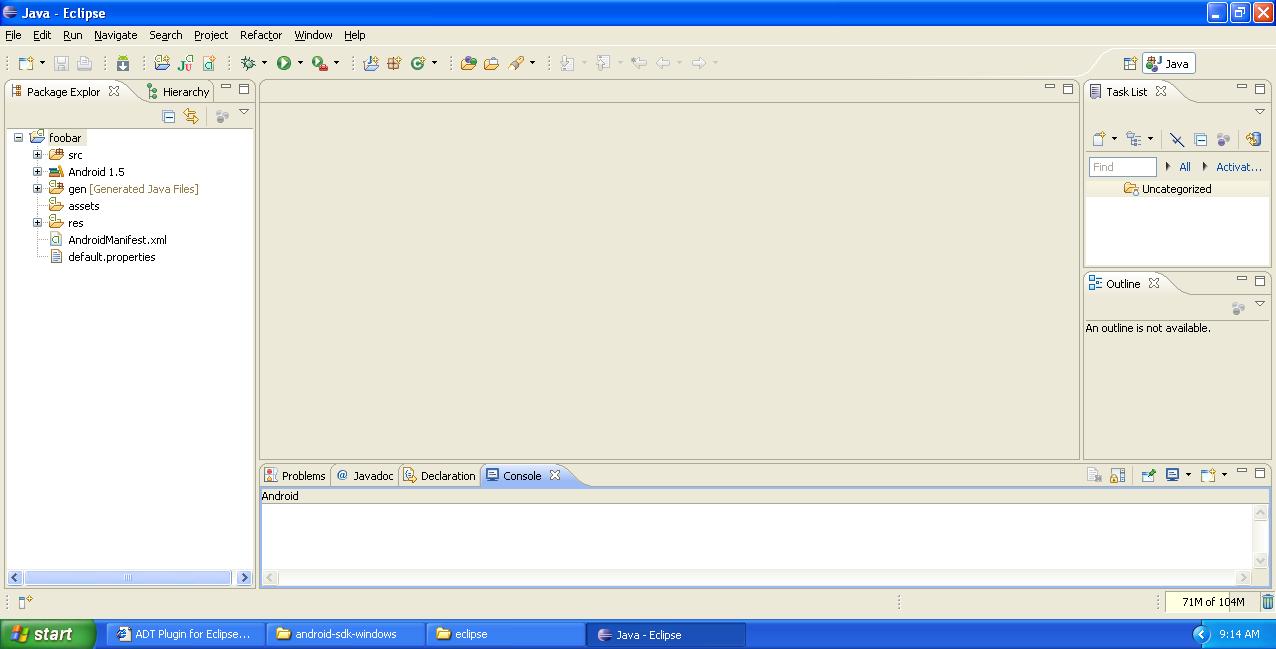
(we’re not going to use our old project, foobar, so you can just close it.)
While NDK supports both C and C++, C++ support is rather limited. For example, exceptions are not supported and there are some known bugs in static constructor/destructor invocations. Also, most of the time when you will use NDK as it was intended – for moving the most performance-critical parts of code to the native layer – you are not likely to need much OOP abstraction and other design goodies. What I’m trying to say is that NDK code is more likely to be written in C rather than C++.
Anyway, our Eclipse installation does not support either C or C++ right now. We don’t really need the full support, including building etc. But we would like to have syntax coloring and basic syntax checking. Thus we have to add some Eclipse features via the update mechanism, almost like when we added Android support.
Right now go to Help – Install New Software menu item. Choose Galileo as the update site (“Work with”). Let the item tree load, and check Eclipse C/C++ Development Tools in the Programming Languages branch:
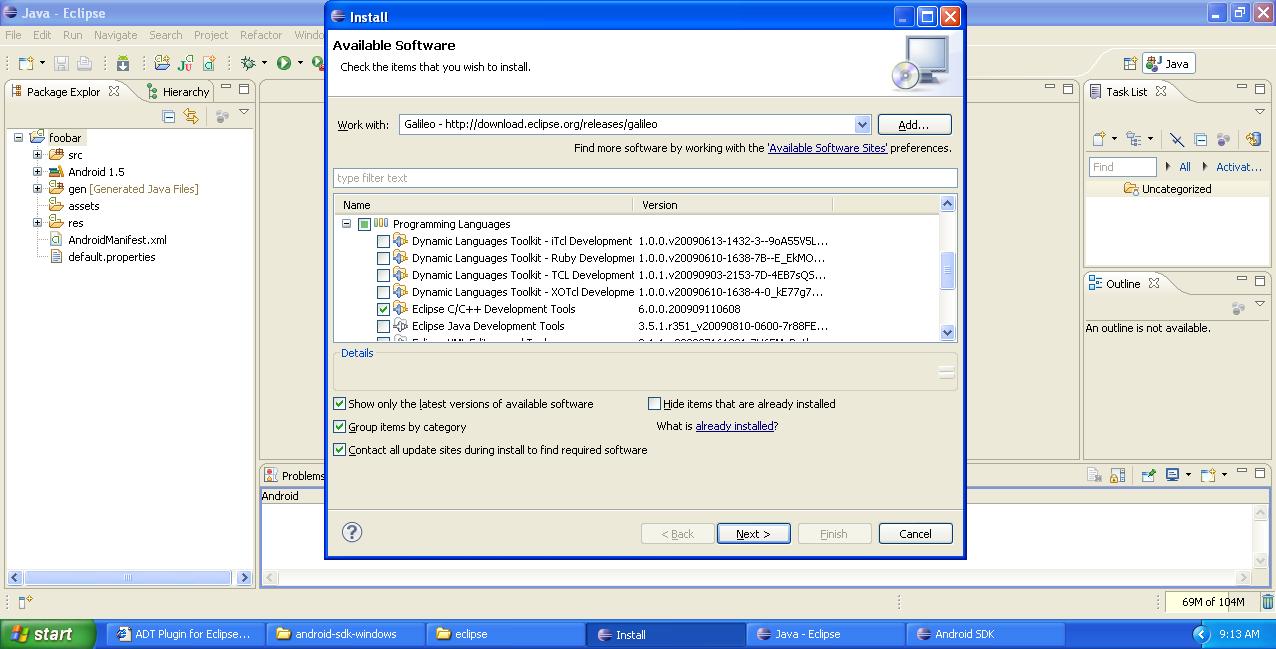
Then press Next. Say yes to everything, accept the licenses and let Eclipse finish the update. Once it is done, you will see the prompt to restart Eclipse:
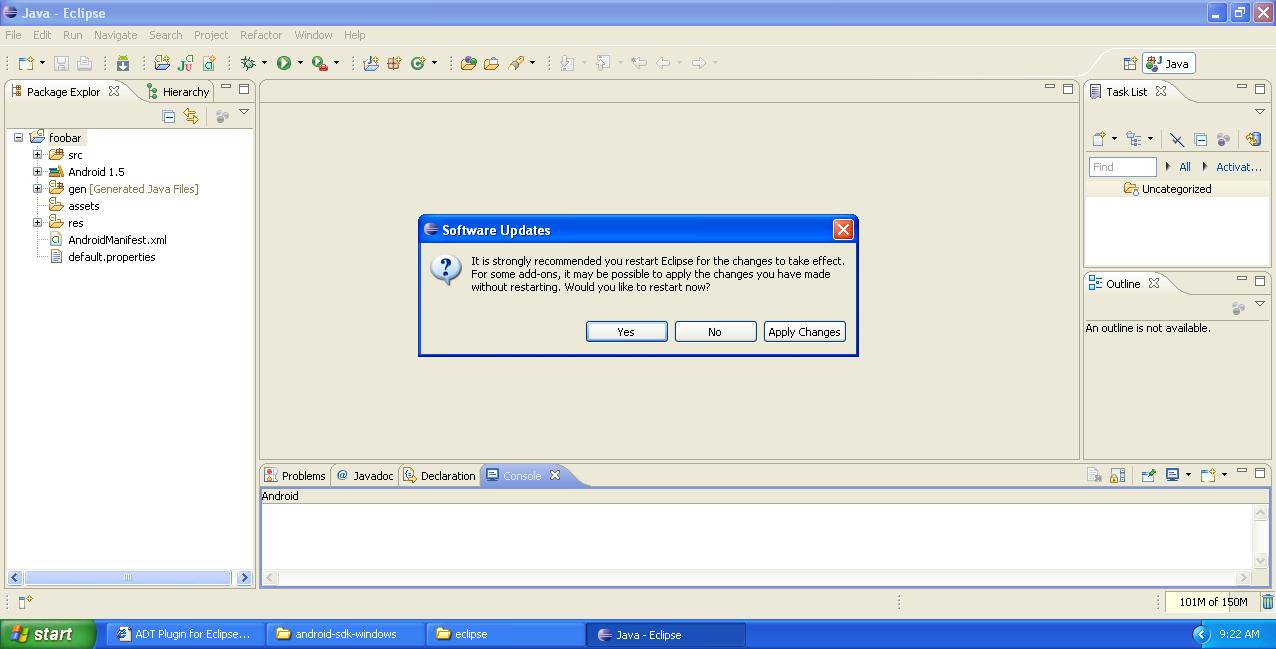
Say Yes and wait for Eclipse to restart. You have C/C++ support in your Eclipse IDE now.
Step 2: Installing Cygwin
Android is Linux based, and thus it is no surprise that when you build native code for it, you need some Unix tools. On Windows, NDK supports Cygwin 1.7.x and above. If you don’t know what Cygwin is, it’s just a set of software that emulates Unix environment on Windows which is necessary in some cases, including ours.
In order to get Cygwin, go to cygwin.com:
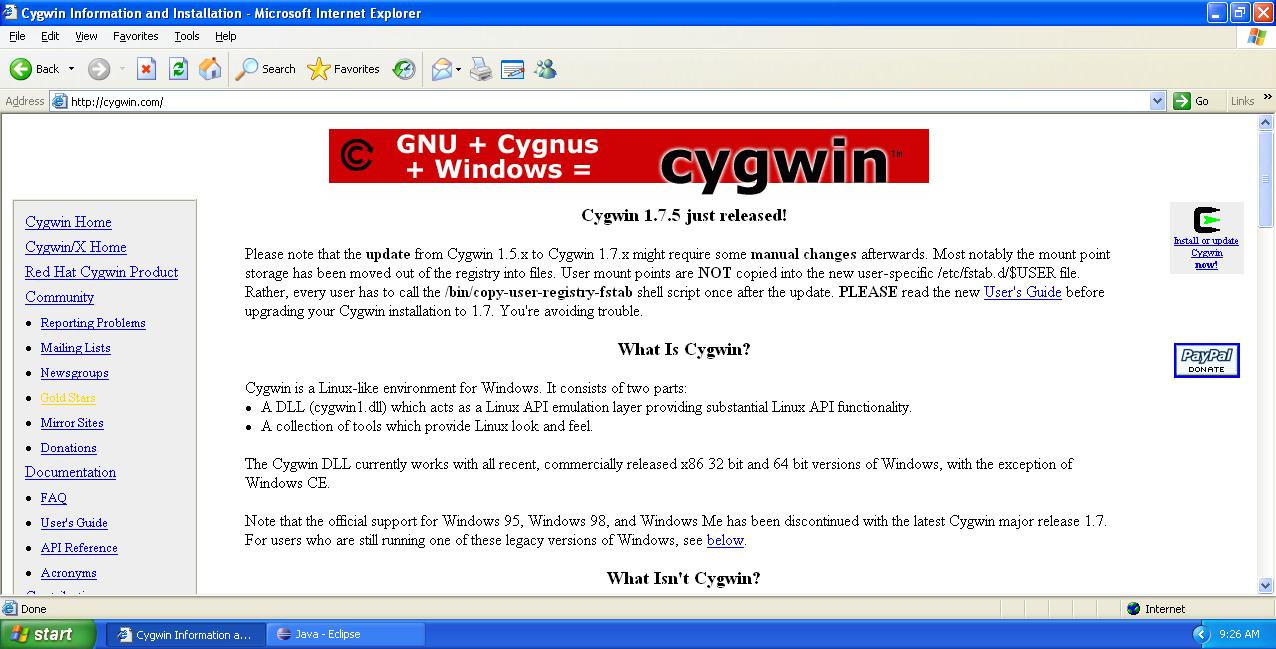
There’s a small grey box on the right side of the page that says “Install or update Cygwin now!”. Click it, and Cygwin’s setup.exe will download and run:

Choose Install from Internet, then click Next, then choose the installation directory (be sure to choose a directory path that contains no spaces in it) – and by the way, the whole thing is going to require up to few gigs of space. Then, choose the local package directory – just use some temporary directory, you’re not likely to need it afterwards.
At this point Cygwin will connect to its central site and download the list of mirror sites. Choosing a mirror site that looks geographically close to you may save you some download time:
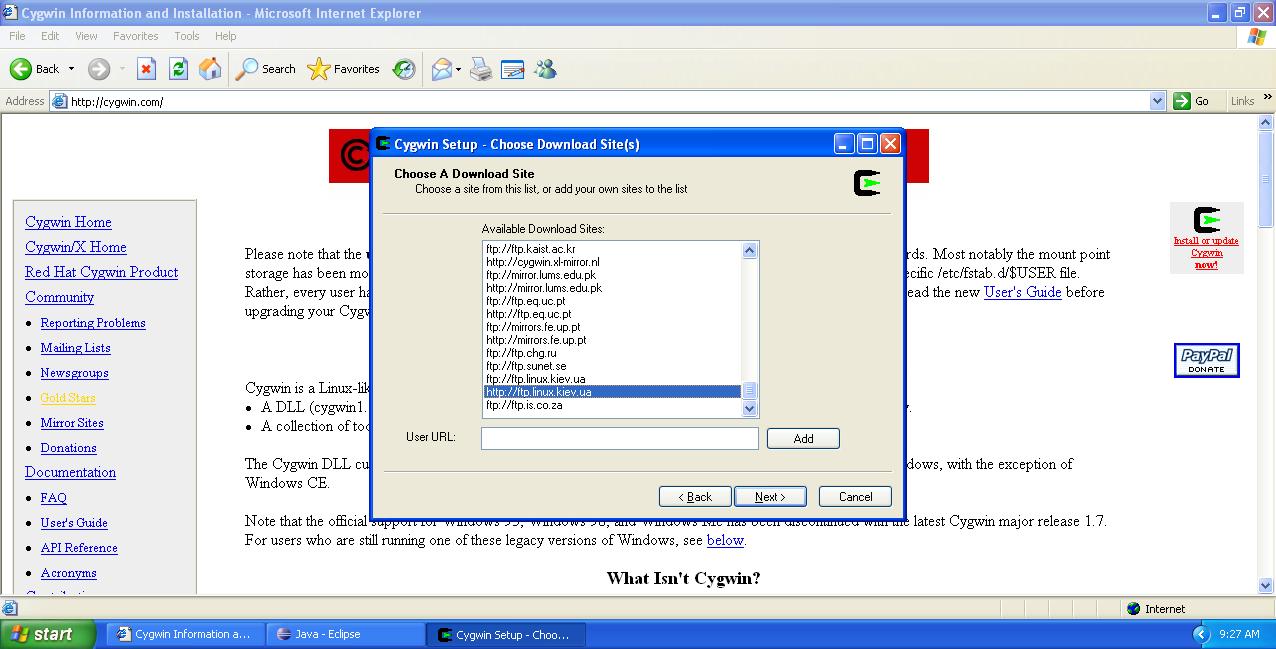
After you choose the mirror and click Next, Cygwin will download and present to you the list of available packages:
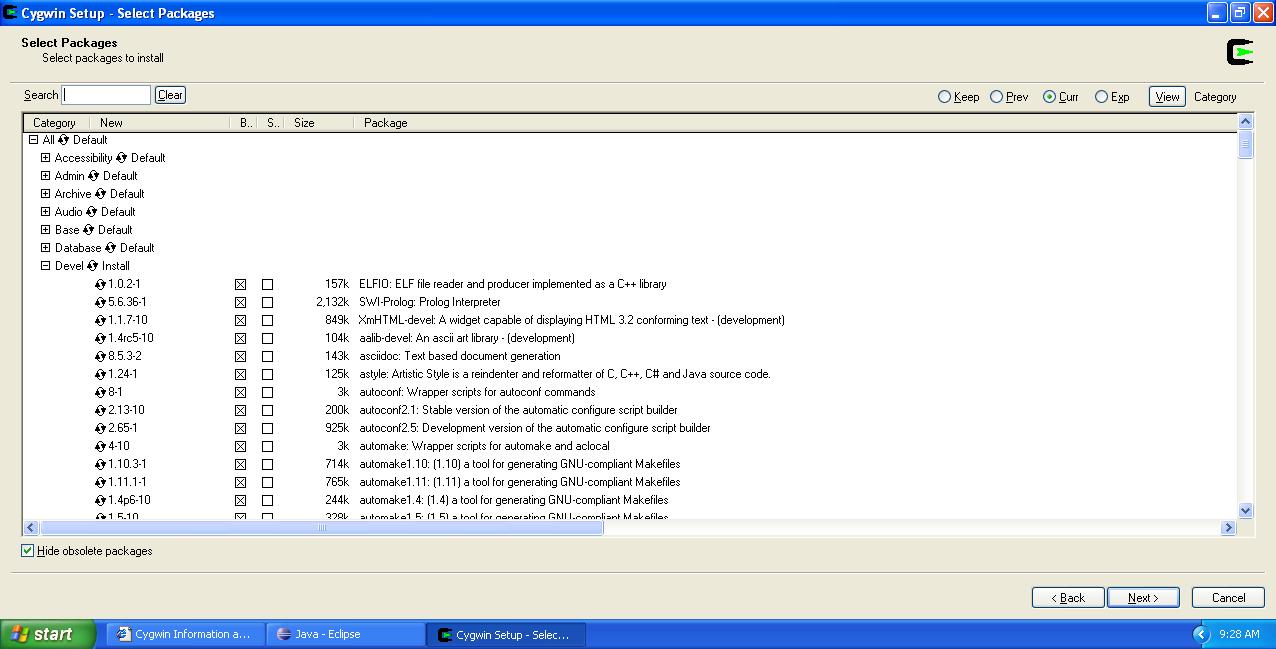
By default, only the base packages are installed. We, however, need the development packages. Rather than picking the packages we think we need, and then struggling with missing dependencies and other typical Unix nightmares, I suggest that we install the entire Devel branch. Click (once) on the word “Default” next to the root Devel node and wait few seconds while the setup hangs. When it is back, you will see that “Default” changes to “Install” for the Devel node, just like on the screenshot above.
Now click next and let Cygwin download the packages and install the environment:

This might take a while, so you can go have a coffee now. Or lunch if your internet connection is slow.
When you are back, you will hopefully see the final setup screen:
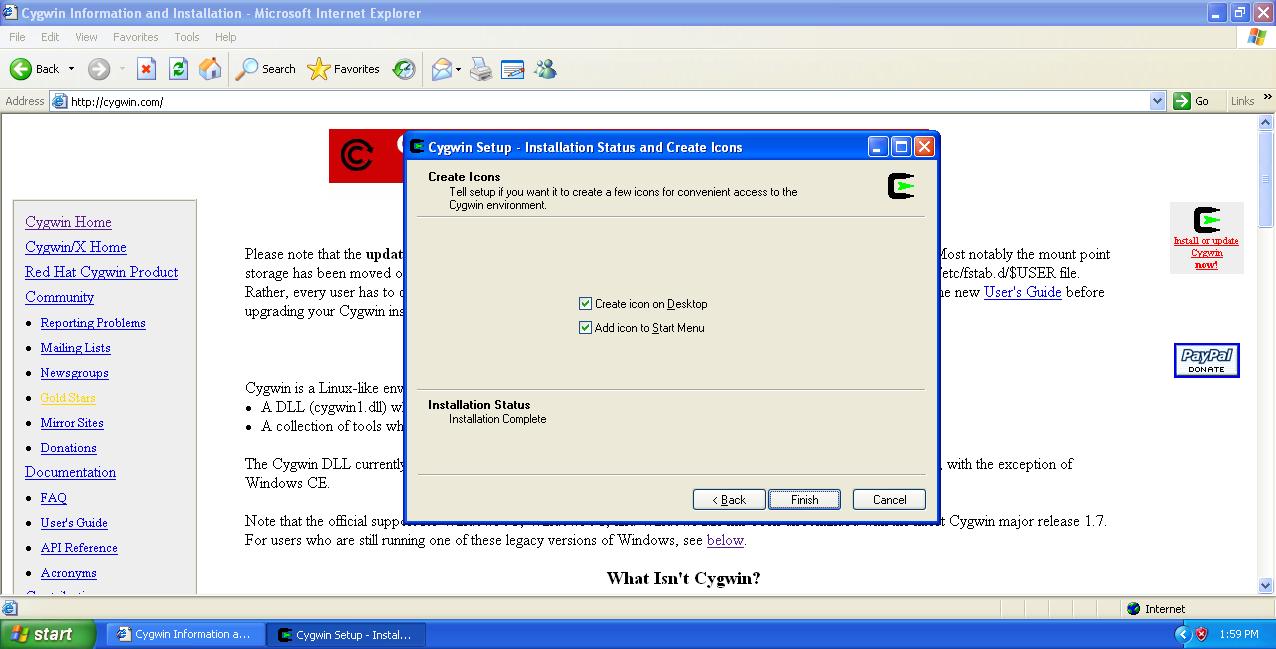
Allow it to create an icon on the desktop. Here’s what you will see on your desktop after you click Finish – an icon that launches the Cygwin console:

Click it once, let the Cygwin console start up and initialize:
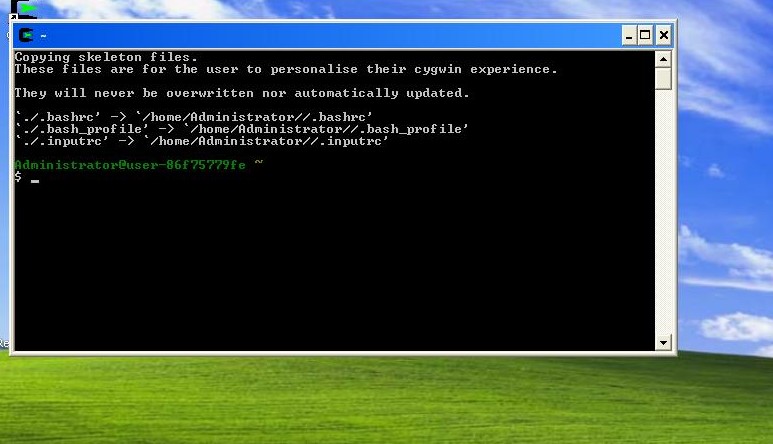
To check that we have the tool that is important for Android NDK, type make -v in the console:
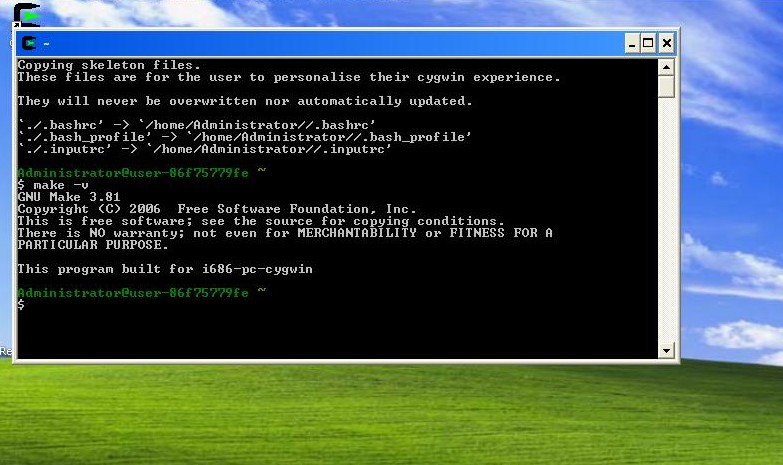
You should see the same response that tells us that GNU Make is present in our Unix environment that is emulated by Cygwin. Cool!
Note: From my own experience, Cygwin installation is often unstable and can be error-prone. If you have a specific issue, let’s discuss it in comments and I’ll try to help. Don’t go further if something is wrong at this step, since correctly installed Cygwin is a requirement for working with NDK on Windows.
Step 3: Installing the Android NDK
Our next step is to download Android NDK itself and place it on our filesystem. You can get NDK from the official Android site:
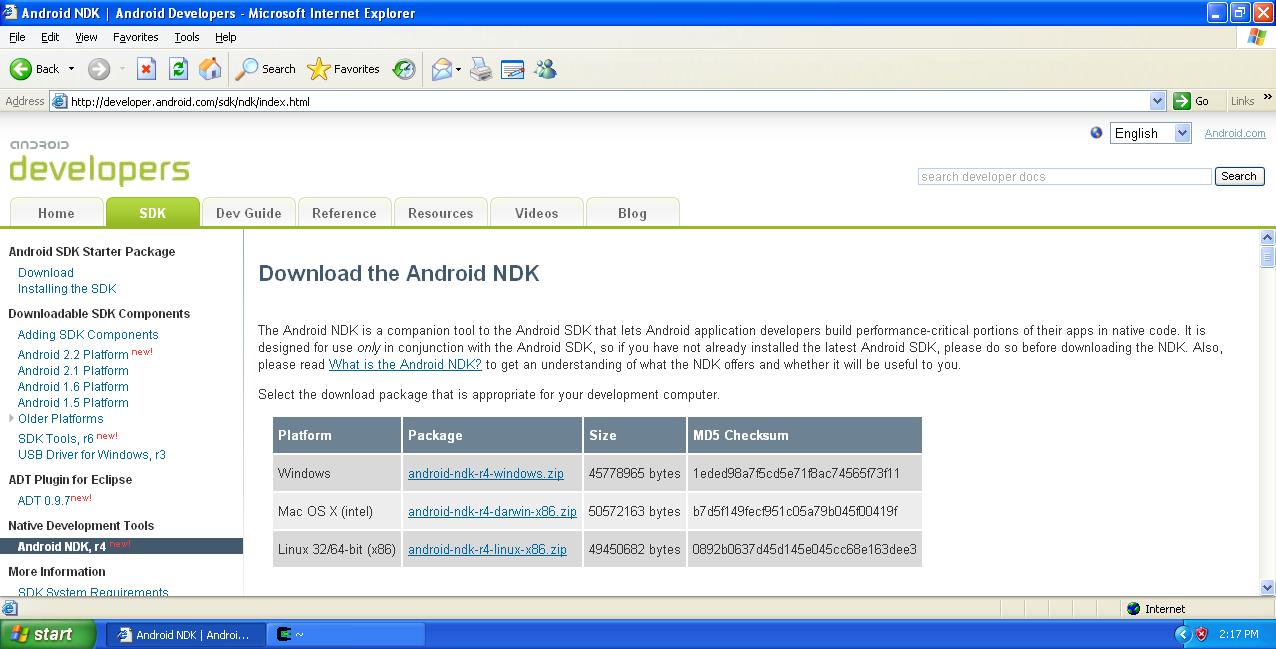
Download the NDK zip for Windows and extract it somewhere, but again, be sure that there are no spaces in the path. In my case, I extracted it to C:\, so the path is C:\android-ndk-r4.
Now we have the environment ready for our first NDK app!
Step 4: Making a Basic NDK App
The general idea of using NDK in apps is to put your native pieces of code into libraries that you can then consume from the Java code. Thus, you always start with a standard (Java) app and then add NDK pieces to it. Thus, let’s create a basic app in Eclipse as we did previously, using the New Android Project wizard:
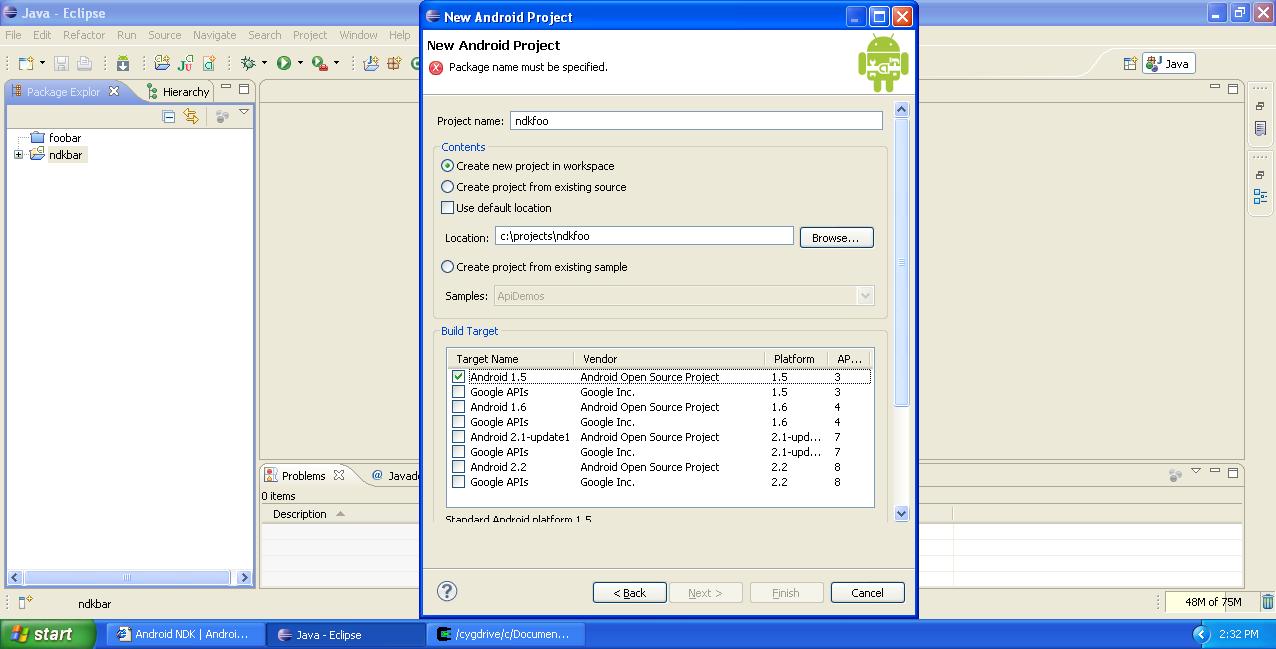
There is, however, an important thing to check, and believe it or not, it is spaces in the path again. My Eclipse workspace is located in a directory that has spaces in it, so I had to uncheck the Use default location checkbox and manually choose a path that does not have spaces, as you can see in the screenshot above. In general, it’s better to keep Eclipse workspaces located in space-free paths.
Otherwise, there are no NDK-specific things you should do when creating the app. I allowed the wizard to create a dummy activity called NdkFooActivity that we will use later on.
After the app has been created by the wizard…
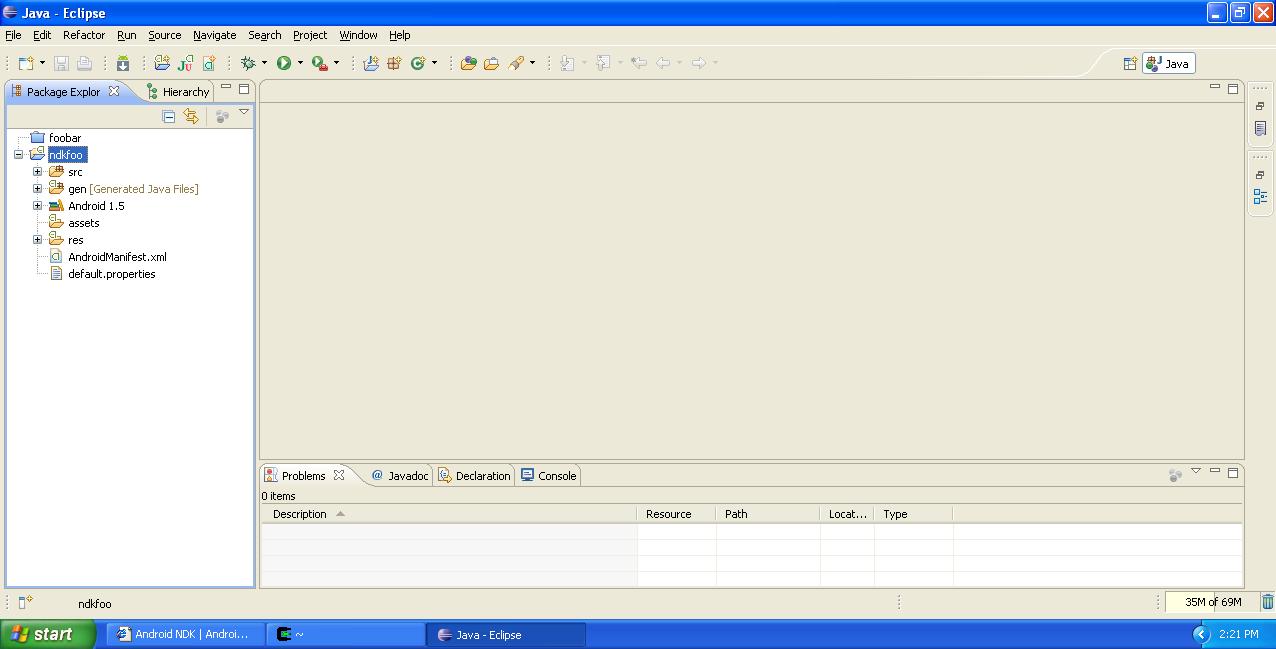
…Make a folder called jni in the root of the project (right-click the project node, New – Folder). Create a file called Android.mk (New – File) within that folder with the following contents:
LOCAL_PATH := $(call my-dir)

include $(CLEAR_VARS)

# Here we give our module name and source file(s)
LOCAL_MODULE    := ndkfoo
LOCAL_SRC_FILES := ndkfoo.c

include $(BUILD_SHARED_LIBRARY)
Except the module name (ndkfoo), treat everything in that file as magic. You can go deeper into Unix Makefiles later if you want.
The Android.mk file is important for the NDK build process to recognize your NDK modules. In our case we named our module ndkfoo and told the build tool that it consists of one source file named ndkfoo.c. Let’s create it in the same jni folder:
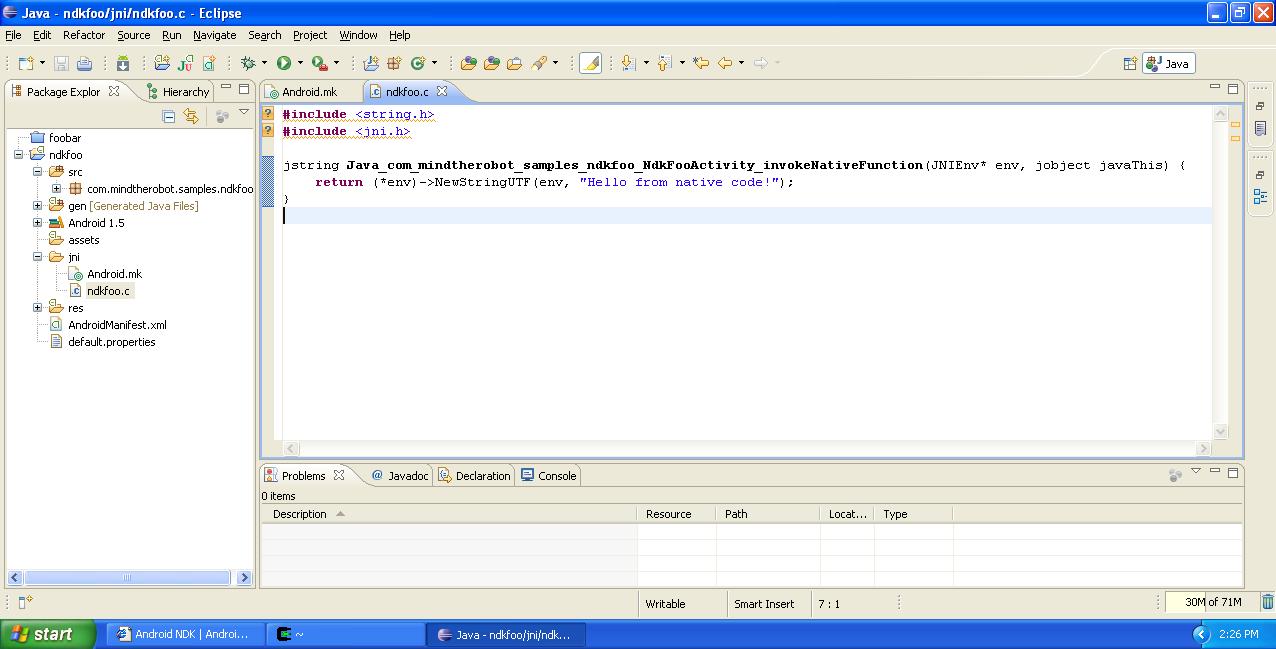
Here’s the content for you to copy and paste:
#include <string.h>
#include <jni.h>

jstring Java_com_mindtherobot_samples_ndkfoo_NdkFooActivity_invokeNativeFunction(JNIEnv* env, jobject javaThis) {
	return (*env)->NewStringUTF(env, "Hello from native code!");
}
Android actually uses the standard Java way to communicate with native code called JNI (Java Native Interface). It defines conventions and mechanisms that Java code and C/C++ code use to interact. You can read more about JNI in the official Sun docs, but for now you might notice that the name of the C function is not just random – it matches the Java class name. In addition, what the function does is it uses the JNIEnv object to create a Java string from a literal, and returns the string to the caller.
You will need to learn more JNI if you’re going to use NDK a lot. By the way, it is also possible to call Java methods from native code, create custom objects and so on.
Now, in order to create a binary library from the C source that we wrote, we will use a combination of Cygwin and Android NDK tools. Launch the Cygwin console and use the cd command to go directly to the folder where your project is. Notice that Windows drives are mapped under /cygdrive within the emulated Unix environment you work with in the Console console. In my case, the command line is: cd /cygdrive/c/projects/ndkfoo
Then, issue a command that will invoke the NDK build tool. In my case, since NDK is installed in C:\ it looks like this: /cygdrive/c/android-ndk-r4/ndk-build
Here’s a screenshot for you to check:
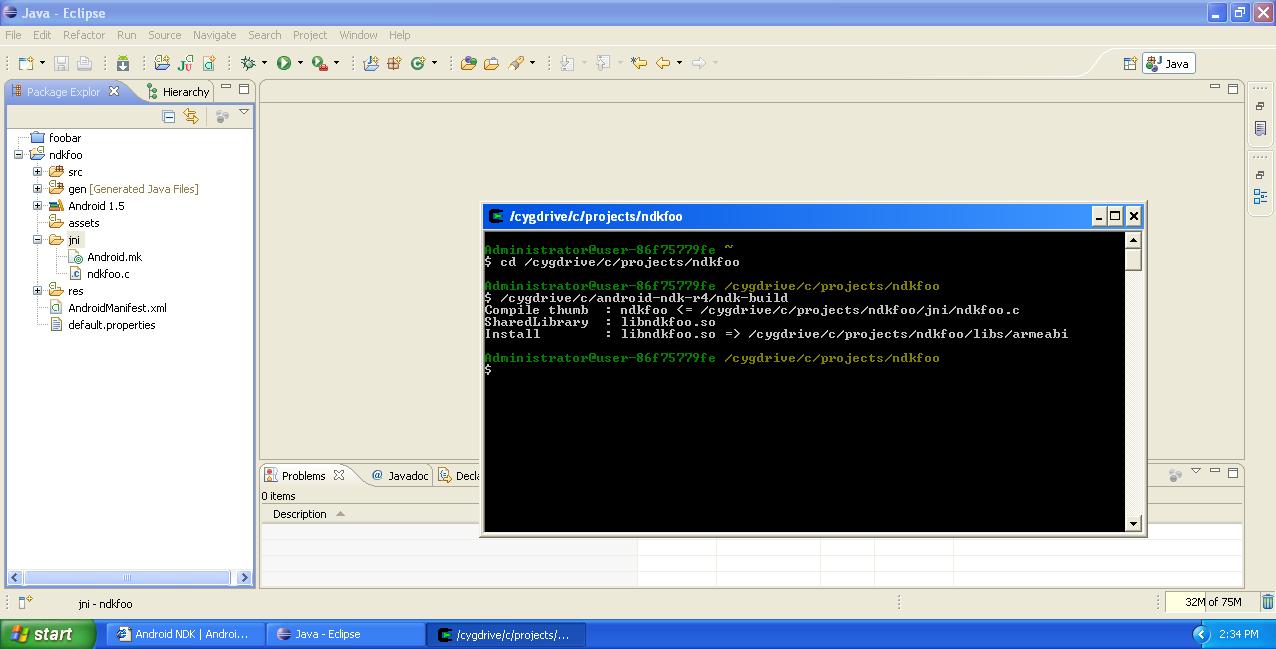
As you can notice, a successful run of the ndk-build tool will create an .so file in a new folder called libs that will be created in your project root (if it’s not there yet). The .so file is the binary library that will be included into the application .apk package and will be available for the Java code of the app to link to. You just need to hit F5 in Eclipse after selecting the project root to update the Eclipse project with the changes you did in the Cygwin console.
You have to repeat the ndk-build command every time you modify the C/C++ source of your NDK code. Eclipse ADT does not support NDK so you need to do it from the Cygwin console. Don’t forget to refresh Eclipse every time!
Anyway, the NDK part is actually finished. What we need to do now is to change the Java code of the NdkFooActivity class to use the NDK code:
package com.mindtherobot.samples.ndkfoo;

import android.app.Activity;
import android.app.AlertDialog;
import android.os.Bundle;

public class NdkFooActivity extends Activity {

	// load the library - name matches jni/Android.mk
	static {
		System.loadLibrary("ndkfoo");
	}

	// declare the native code function - must match ndkfoo.c
	private native String invokeNativeFunction();

	@Override
    public void onCreate(Bundle savedInstanceState) {
        super.onCreate(savedInstanceState);
        setContentView(R.layout.main);

        // this is where we call the native code
        String hello = invokeNativeFunction();

        new AlertDialog.Builder(this).setMessage(hello).show();
    }
}
As you can probably guess, this code will invoke the NDK method that will return the string, that will be displayed as an alert on the screen. Here’s the result of running the ndkfoo app on the emulator:
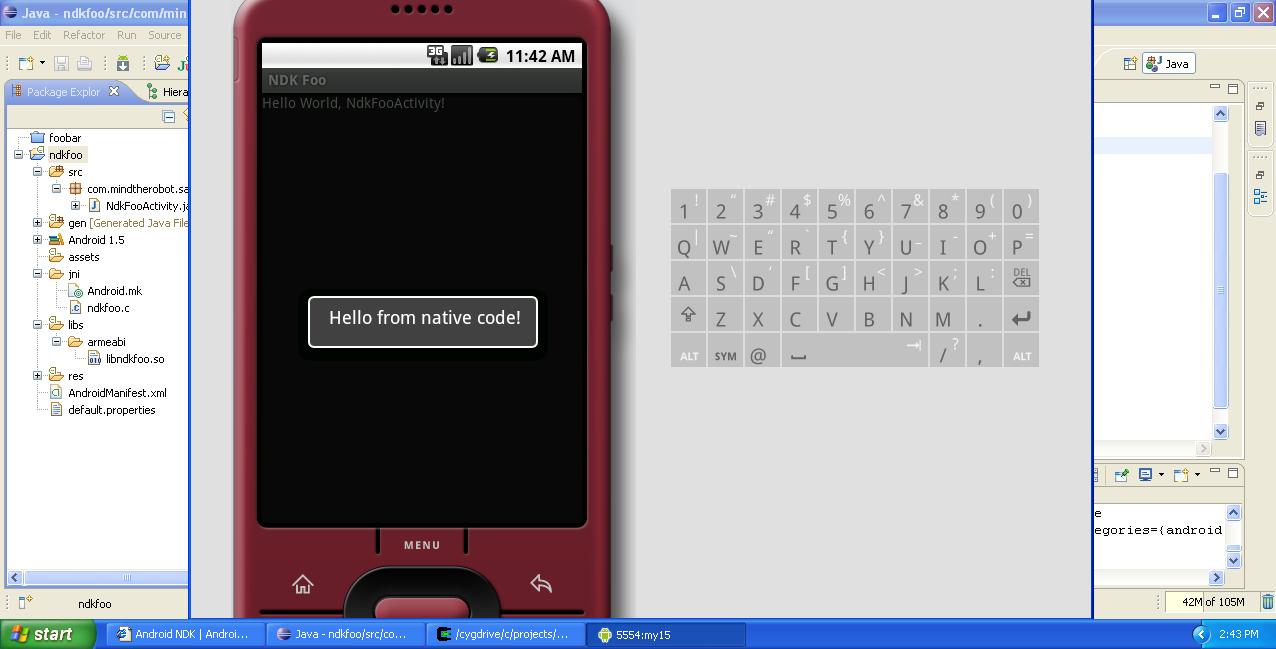
Congratulations! Your first NDK app is running fine.
Step 5: Be Wise and Careful
As it was mentioned above, and as you probably understand better now, NDK is not a monster and is quite easy to use in your app. However, every time you want to use NDK, please think twice and perform investigation to see how much you could actually gain from using it. Mixing C/C++ with Java is generally a bad idea from the code quality point of view, and Dalvik VM is getting faster and faster so you can avoid the NDK in many cases.
Also, be sure to read the NDK docs and learn JNI thoroughly to make sure you use NDK correctly and safely.
Otherwise, happy NDK’ing. 
Tags: android, architecture, beginner, eclipse, emulator, guts, native, ndk, tutorial