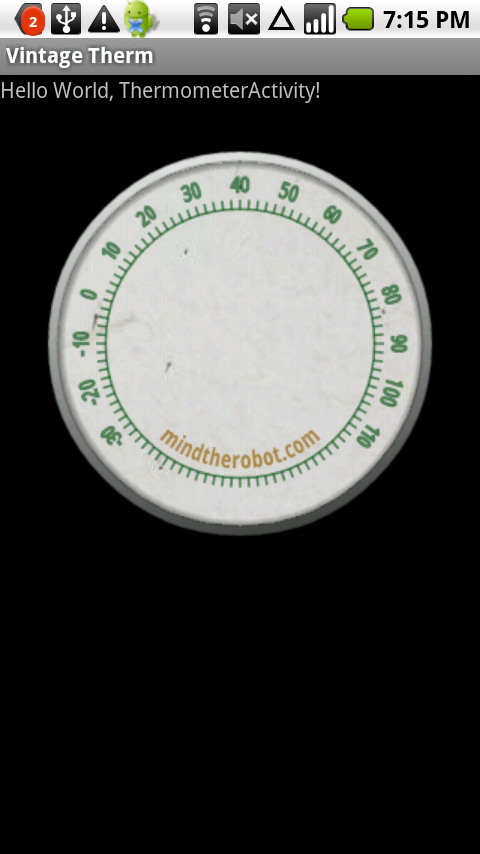
Hi everyone. Today I would like to show how to design a simple yet cool-looking custom UI element for Android. Since an analog clock is already part of the standard UI, I came up with an vintage thermometer as an example.
The final result looks like this:
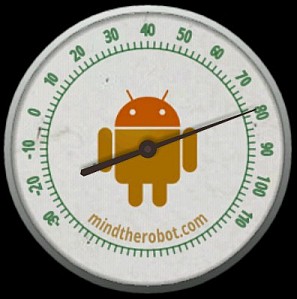
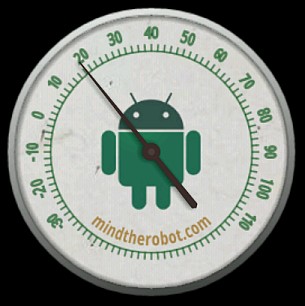
Here’s the list of nice features this custom view has:
- A gradient metallic rim and a textured face
- The logo changes its color depending on the temperature (as you can see in the screenshots)
- A circle-bent title below the logo
- A 3D hand with a shadow
- The hand moves in a physically realistic fashion
- And, of course, it shows the real temperature – based on the phone temperature sensor (if your phone has one)
Also, the thermometer view tries to be a good Android UI citizen:
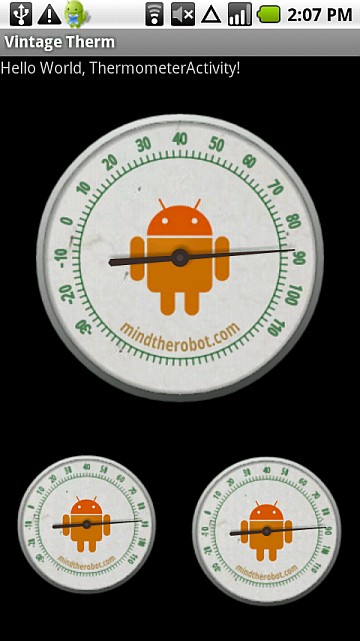
- Scales well to any size
- Supports screen orientation changes and layout changes
- Optimizes its drawing procedures, doesn’t eat CPU when the hand is not moving
- Saves and restores its state gracefully when the activity is paused, re-created etc.
- Reusable – not bound to any external code
If you’d like to know how to develop views of this kind, read on. It’s so easy and fun to do that you will be surprised.
Also, you can grab the code at the bottom of the article as usual. I suggest you do it right now since we will refer to it a lot in the following sections.
(In this article I won’t focus on code too much, because I want to highlight the sequence of steps you need to take to implement this custom view rather than code specifics. However, I will paste in the most interesting snippets.)
OK, time to start coding!
Step 1: Creating an Empty Custom View
I assume you are familiar with the built-in Android views such as TextView, ImageView and so on. We are going to develop our own custom view basically the same way that Android developers created the built-in components.
If you decide to build your own custom view from scratch, you unsurprisingly have to derive from a class called View. The first thing you need to do is to override the onMeasure() method. The onMeasure() takes two View.MeasureSpec instances, one for width and one for height, and is required to return the desired size of the view based on restrictions given in the MeasureSpec’s. It’s an interesting method and you should read the corresponding reference docs before you try to override it.
Back to our thermometer. What we want to achieve in onMeasure() is that we want to keep our custom view square, i.e. keep the width equal to the height — regardless of what the MeasureSpec restrictions are. You can read the code in Thermometer.onMeasure() to see how it is done.
Here’s an illustration of how the thermometer scales to different sizes:
After you override onMeasure() correctly, you have created the simplest view possible – a spacer that does not display anything, just takes some layout space. Now let’s draw something.
By the way, I called my view class Thermometer, without the word view in the name, inspired by the standard AnalogClock.
Step 2: Drawing the Parts
The most interesting callback in the View class is onDraw(). We get a Canvas instance as a parameter. The Canvas is the Android interface to 2D graphics, used to draw everything you see on the screen except stuff that is drawn using OpenGL (usually 3D games and stuff). There is a handful of auxiliary classes that help you define colors, brushes, gradients and so on in the same android.graphics package.
In today’s 3D world, I really love to do some old-school 2D graphics from time to time.
For this example, I was inspired by vintage Coca-Cola thermometers, such as this one.
I won’t describe all the code in details here so watch the steps and read the code to see how I draw the entire thermometer:
Scaling
We use the scale() method in Canvas to change the 2D coordinate space from width x height to 1.0 x 1.0 regardless of the current custom view size. This allows us to draw stuff based on float coordinates ranging from 0.0 to 1.0 (remember, width and height are kept equal by onMeasure() – that simplifies scaling a bit). Here’s a snippet from onDraw():
float scale = (float) getWidth(); canvas.save(Canvas.MATRIX_SAVE_FLAG); canvas.scale(scale, scale);
Apparently, if we want to scale from width to 1.0, scale should be set to width.
We use the Canvas.save() method together with the Canvas.restore() to restore the canvas to the initial state before we exit the onDraw() method (although we are not explicitly required to do so by the API).
The Rim
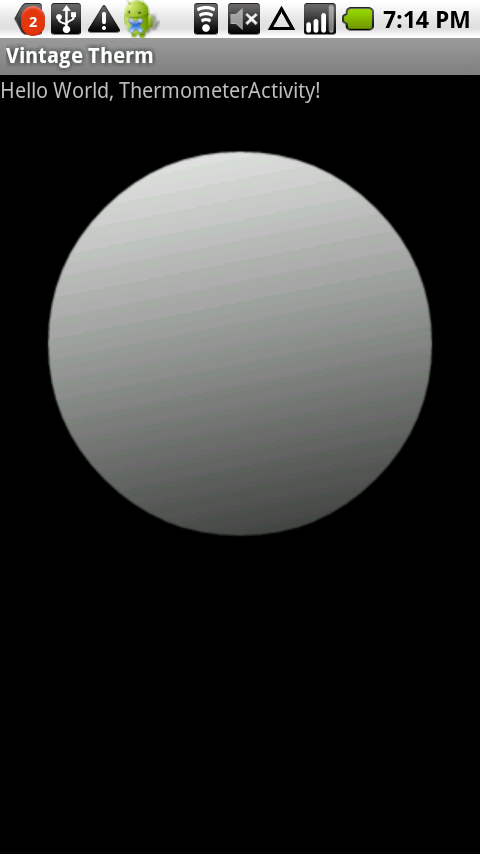
Method: drawRim(), see the initDrawingTools() method for tool definitions.
The first thing we draw is the metallic rim. We use a Paint with a LinearGradient shader to achieve the metallic look. Then we just draw a dark circle outline around the filled circle to make the entire drawing look better on different backgrounds.
Note how the gradient direction is not vertical but a bit skewed. I think the result looks more realistic like that. In general, you should play along with your 2D graphics for a while before the result looks good to you.
The Face
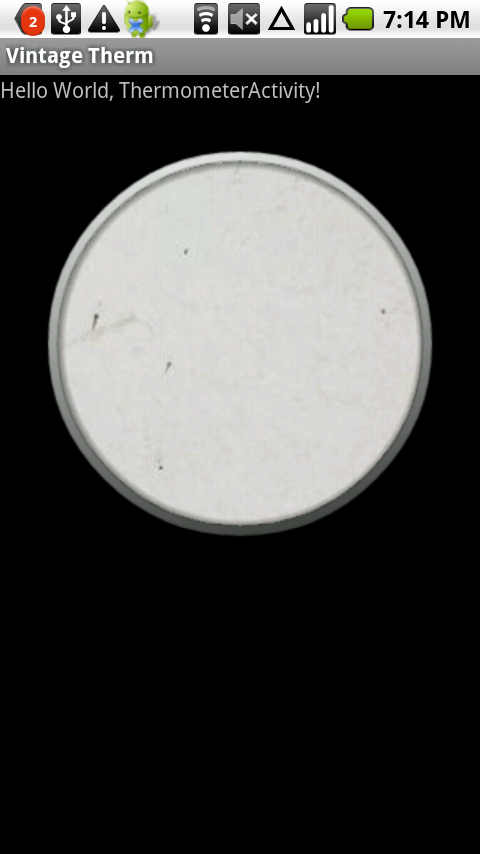
Method: drawFace(), see the initDrawingTools() method for tool definitions.
Now let’s draw the face. We will use a Bitmap based texture for it. Generally, textures can become a problem for scaled 2D graphics because they look bad both when scaled too large and when scaled too small. In this case, however, we would not be able to achieve the worn scratched look without a good texture. The only other Bitmap we will use will be the logo.
In order to fill a primitive with a bitmap texture, use the BitmapShader class. It works fine. Don’t forget to call the setFilterBitmap() method in your Paint instance with true to make the bitmap scale smoothly.
What we also draw here is the inner circular shadow that makes the rim look kind of 3D (closer to the camera than the face). We use a RadialGradient to do that. It’s cool that we can make a gradient with different alpha values for each color like in this case, so that we can make the beginning of the gradient more transparent than the end.
The Scale
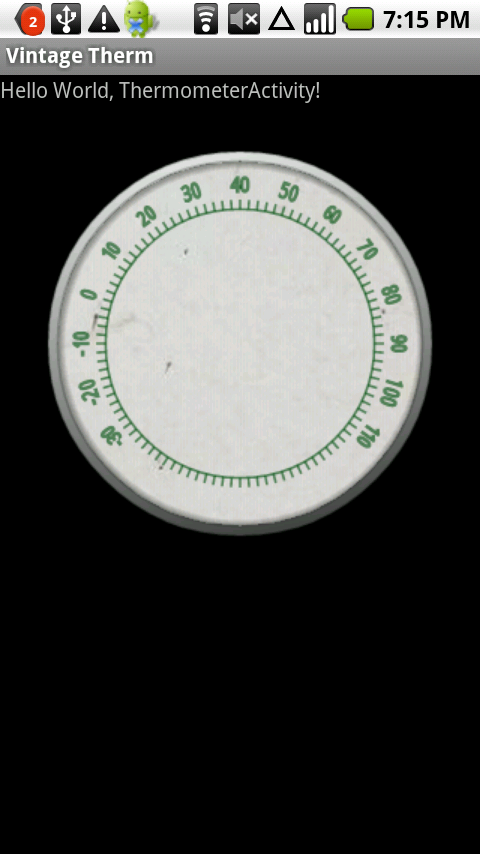
Method: drawScale(), see the initDrawingTools() method for tool definitions.
To draw the scale, we need to use more canvas transformations. Knowing how many scale nicks we have, we know how many degrees we have per nick. Then we use Canvas.rotate() to draw each nick and the number where necessary.
Note how we use Paint.setTextScaleX() to make the font a bit narrower. In my opinion, this makes the font look a bit more vintage.
In the end, we call Canvas.restore(), and the canvas is back to its un-rotated state.
(Sorry, non-US guys, the scale is in Fahrenheit. I’m not from the US either, so it was a good exercise for me when I tested the thermometer.
)
The Title
Method: drawTitle(), see the initDrawingTools() method for tool definitions.
The title is the bent orange text “mindtherobot.com” at the bottom of the thermometer face.
In order to draw it, I used a very powerful method: Canvas.drawTextOnPath(). You can do many cool text effects with it since Path can be any shape, including arcs, polygons, circles and so on. In our case we use an arc.
Remember, you can use Paint.setTextAlign() to align the text in the middle of the path like in this example.
The Logo
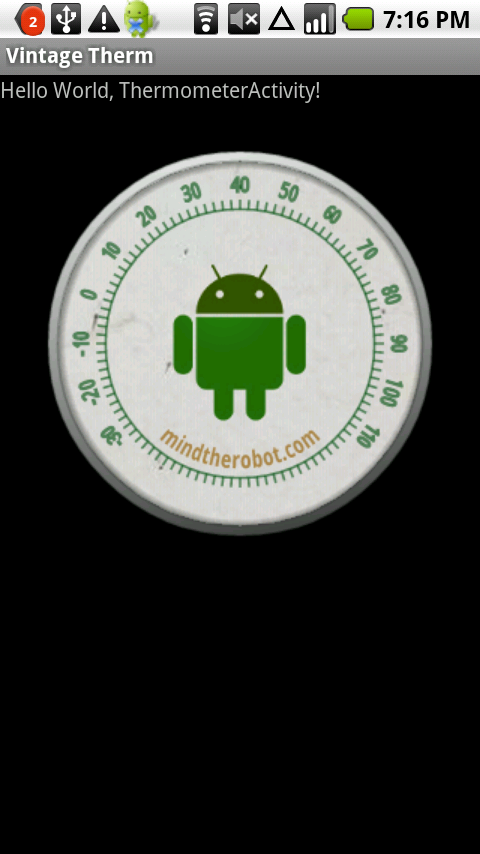
Method: drawLogo(), see the initDrawingTools() method for tool definitions.
The logo is just a bitmap I took from this blog’s header. However, I used a LightingColorFilter to re-color the bitmap depending on the temperature.
The logo is green at 40F, it turns red when the temperature is above 40F and blue when it is below. This looks especially cool when the hand is moving.
The Hand
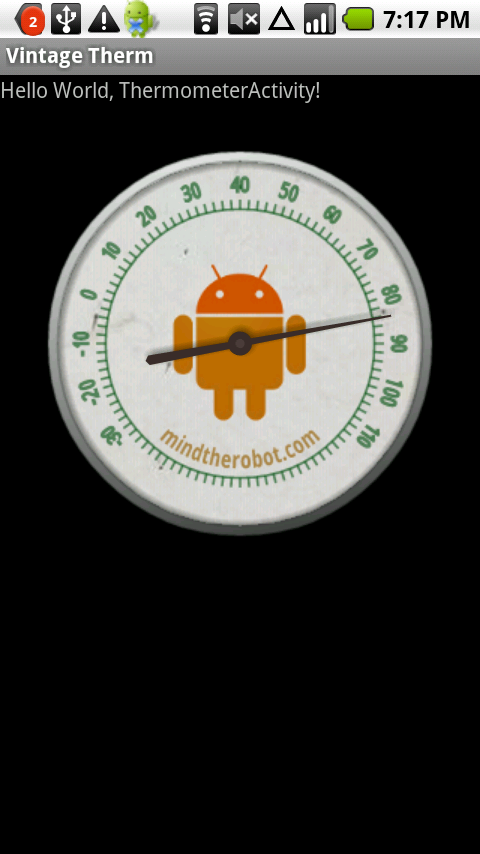
Method: drawHand(), see the initDrawingTools() method for tool definitions.
A hand is just a Path that we fill with a solid color and rotate using canvas transformations.
The interesting part is the shadow. We draw it using Paint.setShadowLayer() to draw it. It is called a “temporary API” in the docs, however for now it works so I will use it.
The problem is that the shadow rotates together with the path. In the real world, it should have the same offset regardless of the hand angle since the light source is not moving. We could fix it by anti-rotating the shadow using sine and cosine functions but I leave this as an exercise to the most pedantic of you. Since the arrow is not moving a lot and the shadow is pretty subtle, I don’t see much of a problem in that right now.
Also, please note that the hand is not drawn when we don’t know the temperature (perhaps the sensor did not give us an update yet).
So this is how we draw all parts of the thermometer. It is important to try to achieve the desired look first, and only then start optimizing the drawing procedures. By the way, optimization is our next step.
Step 3: Optimization
Once we have an idea of how our view will change depending on parameters, we can notice that some parts are static and some are moving. I suggest drawing the parts that do not move onto a Bitmap and draw them all together using a simple Canvas.drawBitmap() call in onDraw(). This way we trade some memory for performance.
In our case, the parts that do not move are the rim, the face, the scale and the title. The logo changes depending on the temperature, and so does the hand – so we need to redraw them every time.
Thus we add the following code to onSizeChanged():
// free the old bitmap
if (background != null) {
background.recycle();
}
background = Bitmap.createBitmap(getWidth(), getHeight(), Bitmap.Config.ARGB_8888);
Canvas backgroundCanvas = new Canvas(background);
float scale = (float) getWidth();
backgroundCanvas.scale(scale, scale);
drawRim(backgroundCanvas);
drawFace(backgroundCanvas);
drawScale(backgroundCanvas);
drawTitle(backgroundCanvas);
As you can see, we can use our drawXXX() method with any Canvas, and here we substitute the “real” Canvas provided to us in onDraw() with a Canvas that draws to our buffer Bitmap (background).
Then, in onDraw() we do the following:
canvas.drawBitmap(background, 0, 0, backgroundPaint);
And only after that we draw the moving parts:
drawLogo(canvas); drawHand(canvas);
This is the simple optimization that should save some CPU cycles, especially when the hand is moving. Now let’s see what makes it move?
Step 4: Mechanics
Motion effects look most real when they are backed by real-world physical calculations. In our case, the hand has the following mechanical properties:
- handPosition – the current position of the hand (in degrees)
- handTarget – the target position of the hand (in degrees). If the position is not equal to the target, we need to move the hand.
- handVelocity – how many degrees the hand moves per second, can be positive or negative
- handAcceleration – how many degrees per second are added to the velocity per second. You might need to recall 7th grade physics if you don’t quite understand.
- lastHandMoveTime – the previous moment when we moved the hand. Needed for frame-rate independent animation. (Ask me in a comment if you don’t know what I mean here.)
And remember, you can’t use == to compare floats because of precision issues, unless you’re comparing to zero. Use Math.abs() of their difference (abs(a – b) < 0.001).
Step 5: State Saving & Getting the Temperature
Have a look at the onSaveInstanceState() and onRestoreInstanceState() methods. If you don’t do what is done there, you will lose all the state (in our case, the hand mechanics parameters) whenever the view is recreated. It can be recreated in various situations, for example when the screen orientation changes, so you should be ready for that. Also, please note how we save and restore the super state. It is required to do so.
I do not plan to describe how exactly to use the temperature sensor because I plan to write another post about sensors in general. Just wanted to add that on my Motorola Droid temperature updates arrive at a very slow rate, perhaps once or twice a minute, so sometimes you need to be patient when you wait for the hand to appear and to move.
Conclusion
We just created a cool looking, animated custom view from scratch. I hope you enjoyed this article. Feel free to ask questions, point to bugs and just show your feelings in the comments.
And one final note: don’t screw up the phone when testing the thermometer. Don’t put it into the fridge for too long.
Attachment: the source
Tags: 2d, activity, android, apps, custom, development, graphics, tutorial, ui, view, widget




Great tutorial! Re: slow temperature updates – old school thermometers used a metallic coil to move the hand, and those were pretty slow to update, too. Extra points for realism!
Thanks Kenneth. Yeah, it updates like a real analog thermometer, but the logo changes its color in a really cool way when the hand is moving fast.
Stay tuned for more articles – I’m going to cover live wallpapers very soon.
[...] Ivan Memruk from Odessa, Ukraine, brings us Mind The Robot, which has a refreshing concern for visual elegance. Speaking of which, soak up the analog steampunk tastiness of Android Custom UI: Making a Vintage Thermometer. [...]
[...] Ivan Memruk from Odessa, Ukraine, brings us Mind The Robot, which has a refreshing concern for visual elegance. Speaking of which, soak up the analog steampunk tastiness of Android Custom UI: Making a Vintage Thermometer. [...]
[...] Ivan Memruk from Odessa, Ukraine, brings us Mind The Robot, which has a refreshing concern for visual elegance. Speaking of which, soak up the analog steampunk tastiness of Android Custom UI: Making a Vintage Thermometer. [...]
[...] How Hot Is It? Ivan Memruk from Odessa, Ukraine, brings us Mind The Robot, which has a refreshing concern for visual elegance. Speaking of which, soak up the analog steampunk tastiness of Android Custom UI: Making a Vintage Thermometer. [...]
Wow, very good tutorial and website. Subscribed =D
Wow. Nice website. This tutorial isn’t something I particularly have a use for at the moment, but it is very clear and informative.
I’ll have to make sure to keep up with MTR now. Thanks!
[...] Ivan Memruk from Odessa, Ukraine, brings us Mind The Robot, which has a refreshing concern for visual elegance. Speaking of which, soak up the analog steampunk tastiness of Android Custom UI: Making a Vintage Thermometer. [...]
It’s always nice to stumble across a new website this terrific! I’ll be coming back for certain
I just found this blog through android developer and found it excellent. Great stuff indeed.
[...] Ivan Memruk from Odessa, Ukraine, brings us Mind The Robot, which has a refreshing concern for visual elegance. Speaking of which, soak up the analog steampunk tastiness of Android Custom UI: Making a Vintage Thermometer. [...]
[...] Ivan Memruk from Odessa, Ukraine, brings us Mind The Robot, which has a refreshing concern for visual elegance. Speaking of which, soak up the analog steampunk tastiness of Android Custom UI: Making a Vintage Thermometer. [...]
[...] Ivan Memruk from Odessa, Ukraine, brings us Mind The Robot, which has a refreshing concern for visual elegance. Speaking of which, soak up the analog steampunk tastiness of Android Custom UI: Making a Vintage Thermometer. [...]
[...] the previous article we used 2D graphics via the Android Canvas to draw a custom UI widget. The Canvas approach is very [...]
why don`t you release the thermometer as an app in the android market? inspired by your article i wanted to download it or a similar app…but there is no comparable app available.
Hmmm.. good idea mindbender
I don’t think I am going to release this as an app, but if you or someone else want to do this, go ahead. just keep the app free of charge and put a link to MTR in it
Great article, Ivan!
usually tutorials are short and to the point. That’s great if you want to learn or look up one detail, but not so good if you want to learn style or more general aspects.
In my case, I’m coming to Android as a professional Perl programmer, accustomed to keep large corporations running. But my Java experience was limited and took place ten years ago, and my focus on graphical programs was five years before that.
Not only is your tutorial informative, but you generate a cool app. I’m looking forward to implementing it on my system. The one change I’m considering is the logo colour. There’s nothing special about 4.4444 C. I considered making it change proprotionally to the temperature, but that’s not really useful. I’m thinking about breaking the range into HOT, WARM, COOL, WINTERY and SIBERIAN ( or in my Canadian equivalent … YUKON ). An advanced feature would be to alter the colour-coding based on the date. What’s cold in June is hot in January. Unless you’re in Australia! Who would have thought a Coca-Cola thermometer needed GPS information?
Hey Tom.
Your ideas are cool and take this simple tutorial to another level, turning it into an interesting app. Would you like to develop and publish an app based on these ideas?
By the way, I also had mostly enterprise development experience before I moved into the mobile space. Although it was easier for me since the enterprise projects were also Java-based.
Great example! I’m just going to do my first customized view with animated elements, this article was just perfect for me.
ThomasJ,
I just want to mention again that making a UI component from scratch might be an overshoot for many cases. If you just need to modify an existing UI component or build a composite component out of several existing ones, there are ways to do it that will save you some effort compared to building your component from scratch such as in this article.
Also, the quasi-component described here does not handle user input in any way, so in the real life the effort would be even larger.
Wow, thanks for making this tutorial and explaining the logic behind the steps! Ever since I got started with Android in the beginning of the year, I have been curious about drawing your own Views to get the cool looks.
Great Tutorial and very perfect examples …… Thanks ivan
This is one of the best short tutorials on drawing I have seen. Congrats on a job well done! You have a special gift for explaining things…
thanks for the good feedback Arnie
[...] Ivan Memruk from Odessa, Ukraine, brings us Mind The Robot, which has a refreshing concern for visual elegance. Speaking of which, soak up the analog steampunk tastiness of Android Custom UI: Making a Vintage Thermometer. [...]
[...] Ivan Memruk from Odessa, Ukraine, brings us Mind The Robot, which has a refreshing concern for visual elegance. Speaking of which, soak up the analog steampunk tastiness of Android Custom UI: Making a Vintage Thermometer. [...]
Thx for the tutorial… I have been trying to figure out how to make a meter like this for a month. A tutorial on how to make graphs would also be great.
[...] Ivan Memruk from Odessa, Ukraine, brings us Mind The Robot, which has a refreshing concern for visual elegance. Speaking of which, soak up the analog steampunk tastiness of Android Custom UI: Making a Vintage Thermometer. [...]
[...] the way, I demonstrated creating custom views in one of my previous articles. Read it if you want to know more about making custom looking views from [...]
[...] Ivan Memruk from Odessa, Ukraine, brings us Mind The Robot, which has a refreshing concern for visual elegance. Speaking of which, soak up the analog steampunk tastiness of Android Custom UI: Making a Vintage Thermometer. [...]
[...] for widgets, i stubled upon a blog named “Mind the Robot” showing how to create a vintage thermometer for Android. Seeing the thermometer makes me believe that it should not be too hard creating a [...]
[...] can look at it. If you want to learn more about developing custom widgets for Android, I recommend my article about making a thermometer widget. It shows how to develop a much more interesting widget (but does not build it using [...]
[...] you have some experience making custom analog-looking controls, then you know where to start. We start with separating everything we draw into [...]
[...] his code also. I’ve added properties and inline comments to his source code. Please check Mind the Robot for updates on the Vintage Thermometer. Also check that site for other Android related [...]
[...] Ivan Memruk from Odessa, Ukraine, brings us Mind The Robot, which has a refreshing concern for visual elegance. Speaking of which, soak up the analog steampunk tastiness of Android Custom UI: Making a Vintage Thermometer. [...]
Hi Ivan,
I love this example.
I’d like to modify it and use it in my app. What license is it released under? Will you please give folks permission to use it?
Milk Man
Hi Milk Man.
Glad you liked it!
You are welcome to use the code. It’s public domain.
Would be curious to know how you applied this in your app, though.
-Ivan
That’s a great post thank you, I need to do something similar. Since I don’t have a Thermometer in the emulator I added timer and random fake temperature readings to see how it looks in action.
For that we can add something in Thermometer.java along the lines of
// Handler for timer
private Handler mHandler = new Handler();
private static Random mRandGenerator = new Random();
private Runnable mUpdateTimeTask = new Runnable()
{
public void run()
{
// Fake a new reading
setHandTarget( (float)mRandGenerator.nextInt( 120 ) );
// Wait for movement
mHandler.postDelayed(mUpdateTimeTask, ( 2 * 1000)) ;
}
};
@Override
protected void onAttachedToWindow()
{
super.onAttachedToWindow();
attachToSensor();
// timer
mHandler.removeCallbacks(mUpdateTimeTask);
mHandler.postDelayed(mUpdateTimeTask, 100);
}
@Override
protected void onDetachedFromWindow()
{
detachFromSensor();
super.onDetachedFromWindow();
// timer
mHandler.removeCallbacks(mUpdateTimeTask);
}
[...] A few months ago, I wrote an Android gauge widget based on the vintage thermometer written by MindTheRobot. I also updated the Vintage Thermometer in the process. I received a lot of positive feedback on [...]
Merry Christmas!
I’ve been digesting your Thermometer for a few days. I still don’t understand the “Mechanics” section, more specifically the animation of the needle. I have drawn a scale (0-360, where 90 is “centerDegree” and 0 is at the 3 o’clock position) and manually set (handTarget) to an angle (20 degrees) for the needle to drive to, but I can’t seem to get the animation to happen.
In your code, When “drawHand” calls “degreeToAngle” I see where it draws the “HandPath” for the needle. I see where the test for if the “handNeedsToMove” occurs. I see where the sensor controls the the HandTarget (by calling setHandTarget) in your code. I set my “handTarget” to 20 (manually), and “handPosition” to 90). I can get “drawHand” to draw the “handPath” at the 20 degree angle by feeding it “handTarget” instead of “handPosition”, but that’s not how this lesson was intended. I have a tough time understanding MoveHand, since I can’t seem to get it to work. Could you, would you, please explain where I’m going wrong? If I can understand how to get the animation with a user defined angle to work, then I should understand the sensor driven example you provide.
Thanks
Jared B. Sams
Hi Jared. Merry Christmas to you too!
The idea is that moveHand() is called as the result of the onDraw() event handler. However, moveHand() itself calls invalidate() in case when it thinks the motion isn’t finished. invalidate() triggers onDraw() again and thus redrawing and updating the mechanic variables (position, velocity and acceleration) is looped until we know there is no need to move the hand (and thus redraw the thermometer) any more.
Regarding the mech variables themselves, they come from classical mechanics: acceleration is how much velocity changes every ms, velocity is how much the position changes, and we keep those variables with the right sign so they drive position towards the target (if it’s not the same yet).
I am still unsure if I answered your question so feel free to continue
-Ivan
following error occuring, plz tell me any soultion
UNEXPECTED TOP-LEVEL EXCEPTION:
java.lang.IllegalArgumentException: already added: Lcom/android/commands/am/Am$1;
[2010-12-27 17:44:15 - fallwallpaper]: Dx at com.android.dx.dex.file.ClassDefsSection.add(ClassDefsSection.java:123)
[2010-12-27 17:44:15 - fallwallpaper]: Dx at com.android.dx.dex.file.DexFile.add(DexFile.java:143)
[2010-12-27 17:44:15 - fallwallpaper]: Dx at com.android.dx.command.dexer.Main.processClass(Main.java:338)
ozitech,
As you can probably see yourself, the error is not related to my code.
Try cleaning and re-building your project, or reconfiguring your SDK and Eclipse.
Wow! I had no idea that we can do that just through code!
*claps*
Glad you liked it Hyunjungsoh!
I do actually use a bitmap there – to make a realistic worn out texture for the face.
Ivan,
Thanks for the response it helped. I apparently wasn’t utilizing the instance state info properly. I continue my digestion of your code and managed to get the needles moving using the code from Orn Kristjansson above. I wanted to try and feed a number by way of a button and edit text field (in the main.xml) instead of randomly seeding it. I have the Screen Element Handles, the Button, it’s handler, and onClickListener coded. I did a simple Toast to test the functionality. Within the buttonHandler (in ThermometerActivity) that implemets the onClickListener there lies the public void onClick (VIew v) method. Within onClick I tried calling the setHandTarget ((float) (75)) method from the ThermometerActivity. I tried two different ways.
//I thought since it’s in the same package?
//Thermometer.setHandDTarget( (float)(76) ); //didn’t work, so I imported Thermometer into ThermometerActivity and though…
//since it’s owning class has been imported above?
//setHandDTarget((float) (76)); //also didn’t work
Then I thought, well maybe it’s because setHandTarget s a private function. So I made it public and tried again. I “FAIL” to understand how to call a method from the Thermometer class from ThermometerActivity class. Since the Thermometer class has no onCreate method it’s not like anything I’ve been able to find using Intents.
Jared B. Sams
Jared,
I feel the issue is not so much around the Thermometer code but about some general Java things.
I suggest you invest into that more since mastering Java is fundamental for writing effective Android code. It’s worth spending time on.
-Ivan
Ivan,
Mr. Swartz taught me java and C++ a few years back. His website remains useful for me from time to time. http://www.leepoint.net/notes-java/index.html Where do you suggest I go about investing my time? Any useful resources for these basic kinds of stumbles?
Jared
Hi
This is a very nice tutorial, many thanks. I have been working on a different kind of app, which shows data tables. Essentially I want to port one of our sites: http://oceanus2000.com/
However when I make tables using the tablelayout, I understand that it is not possible to scroll them horizontally, only vertically. I have the vertical part working perfectly. How then would be the best way to implement this in android? It seems to me that a tableview isn’t the answer, and perhaps an imageview is required, and all the cells of the table drawn on a canvas. Any suggestions much appreciated.
Regards
Joao